




Monday, 9 a.m. Sales just signed a new contract: twelve sites to set up before the end of the month. Thomas, technical manager at a print dealer, opens his print fleet management platform.
He has to create twelve sites, configure a data collection agent for each one, enter the IP ranges, and schedule the meter reads. That’s half a day of data entry, with no room for error. Thomas already has his alerts and reports. What eats his time are the tasks nobody has automated, the ones that fill his day. The Model Context Protocol (MCP) lets him hand that list to his AI assistant. With this new standard, an AI such as ChatGPT, Claude, or Mistral works inside your software from a simple written request. In this article, we’ll cover why connecting your business software is so expensive, what MCP changes for you, and what it enables in a print fleet management platform. Four real-world examples from a dealer’s day then show MCP in action. Finally, five questions will help you adopt it safely.
Key takeaways
- MCP is an open standard that lets your AI use the features of your business software, with no coding.
- KPAX V3 includes a native MCP server that works with ChatGPT, Claude, and Mistral, at no extra cost.
- You stay in control: per-user permissions, confirmation before any change, and a log of every action.
Why your software doesn’t talk to each other
A print dealer relies on several tools every day: a fleet management platform to monitor printers, an ERP for billing, a CRM for customers, and a ticketing tool for service calls. Each tool does its job, but none of them shares its data with the others. Your team bridges the gap, often with a spreadsheet or a third-party app. To send its data to another application, a piece of software goes through its API. Think of an API as a door each vendor opens onto its data. Two applications each have their own door, but someone still has to build the bridge between them. That bridge is called a connector. Someone has to write it, map which data goes where (a printer’s meter to the right line on an invoice, for example), and secure access. Until now, a dealer had three ways to get that bridge:- Buy the vendor’s connector. It’s the easiest and fastest option. It also comes at a price: the license, sometimes setup fees, then a maintenance contract.
- Build your own connector. You need a developer, several weeks of work, then updates every time either application changes. The real cost is hard to predict, and even harder to control.
- Work around it. Your team exports the data, reformats it, then re-enters it by hand or with a semi-automated process. Everything depends on a file, a script only one person understands, or a wiki nobody keeps up to date.
MCP: a universal plug between AI and your software
MCP is an open standard that removes the custom connector an API requires. Each vendor with an MCP server describes what its software can do. Your AI assistant connects to it, then uses those features on your behalf. USB-C is a good comparison. Every device used to have its own type of cable. With USB-C, one plug and one standard are enough. MCP plays that role for AI: one way to connect, whatever the software. You don’t write code or dig through menus. You type your request in plain English, and the AI assistant carries it out.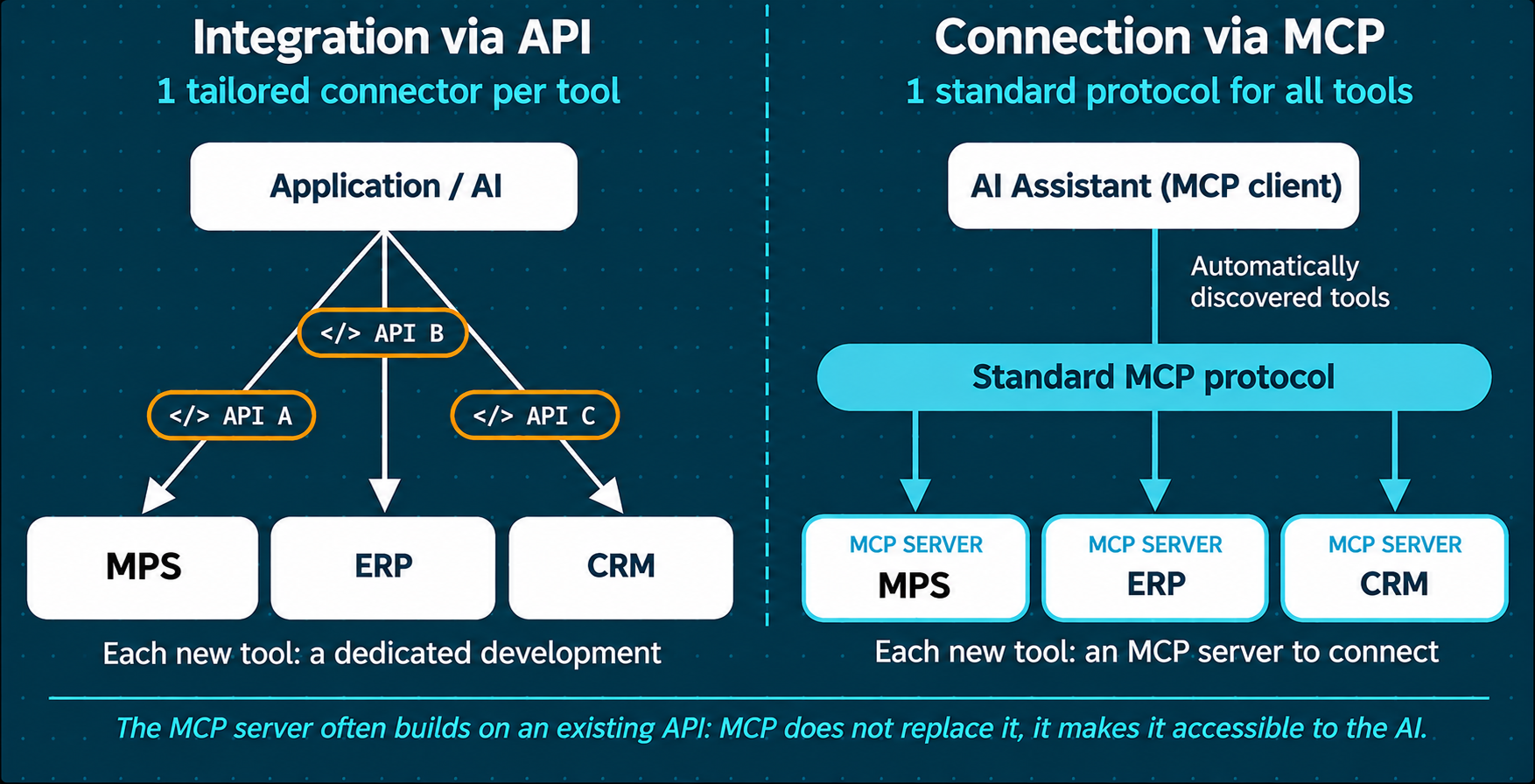
| API integration | With MCP | |
|---|---|---|
| Who builds the link | The vendor (paid), your developer, or your team by hand | The vendor, once and for all |
| Time to set up | A few days to several weeks | A few minutes |
| Maintenance | Dedicated contract, or your own team | Handled by the vendor |
| Who can use it | Technical staff | Any authorized user |
KPAX: an open API and a native MCP server
As a vendor-neutral MPS platform, KPAX already offers a free, open REST API. It sends the data KPAX collects to your ERP, CRM, ITSM tools, or other business software: meter reads, supply levels, alerts, device inventory, and much more. An API is still a developer’s tool, though. With the MCP server, any authorized user can work with that data without writing a line of code.The MCP server: take action in KPAX without coding
KPAX V3 includes a native MCP server. You connect it in minutes, with no coding, to ChatGPT, Claude, Mistral, or any other MCP-compatible application. Your assistant then gets access to about fifty KPAX features: accounts, data collection agents, devices, labels, dynamic groups, device profiles, and more (the full list is available in KPAX). Your team no longer opens KPAX for every task. They manage their KPAX actions from the AI they already use every day. The API and the MCP server work together. The API handles automated workflows, such as sending meter reads to billing every month. The MCP server handles one-off requests from any authorized user. It also complements Kléo, the assistant built into KPAX. Kléo helps you get the most out of the platform; the MCP server puts KPAX to work inside your everyday AI.Four real-world examples with the KPAX MCP server
Each example follows three steps: the request you type to your AI (called a “prompt”), what the AI then does in KPAX, and what you get out of it.1. Spot low supplies
Your request (the prompt): “Hi, show me the XYZ Group devices with a supply below 5% today.” What the AI does: queries KPAX and lists the devices affected, with their site and supply level. What you get: you batch the toner order before anyone runs out.2. Label devices in bulk
Your request (the prompt): “Apply the High Volume label to devices that print more than 1,000 pages a month.” What the AI does: finds the devices, asks for your approval, then applies the label. What you get: you know which devices to watch, or to upgrade to a higher-capacity model at contract renewal.3. Create a dynamic group
Your request (the prompt): “Create a dynamic group with all ABC-brand color devices.” What the AI does: creates the group, which then updates itself as the fleet changes. What you get: you attach an alert rule or a report to it, without opening a single menu.4. Prepare a multi-site deployment
Your request (the prompt): “Create an account for each of this customer’s twelve sites from this list, with one data collection agent per site, its IP ranges, and a daily meter read.” What the AI does: sets up the twelve accounts and their agents in a few exchanges. What you get: the technician just installs the agents on site, or guides the installation remotely with the site contact. In the following weeks, one question is enough: “Which agents haven’t reported in the last 48 hours?” The assistant lists the sites involved and, once you confirm, can label their devices to plan the technician’s route. The same approach works for other everyday tasks:- checking a device’s meter history before an invoice dispute;
- pulling a customer’s print volumes to prepare a contract renewal.
Five questions to ask before connecting AI to your fleet
With MCP, an AI can read your fleet data, and change it too. Before you grant that access, you need clear answers to these five questions. Here are KPAX’s answers: we built our native MCP server around security and per-user permissions.- Does the AI assistant act with my permissions, and only those? Yes. It only reaches what your KPAX role allows. KPAX doesn’t even offer it a tool you’re not allowed to use.
- Who decides to grant access? The administrator. They grant a dedicated MCP permission to each user.
- Can the assistant go beyond my scope? No. It stays within your accounts, never beyond.
- Can I limit the tools, or shut everything off? Yes. The administrator turns tools on one by one and can disable the server at any time.
- What happens before a change? The assistant asks for your confirmation, and KPAX logs every action.
Ready to try it? Test the KPAX MCP server with your AI
Three steps are all it takes to connect your AI assistant to KPAX:- Check your KPAX version. The MCP server is available in KPAX V3. Still on KPAX V2? Contact us to plan your migration.
- Get MCP enabled. Your KPAX administrator grants the MCP permission to the right users and chooses which features the AI can use.
- Connect your AI to KPAX. Follow the step-by-step guide in KPAX (Documentation menu, MCP Server section), then ask your first question.
- Discover KPAX AI: everything AI brings to your fleet management.
- Talk to a KPAX expert: a demo built around your own use cases.
- Build your business case: we’ll help you quantify the benefits of MCP to win over your leadership.
- Start your free trial: test the MCP server on your real data.
MCP server FAQ
It’s a program published by a software vendor. It lets an AI assistant use that software’s features, based on an open standard.
No. The API is still the right tool for automated data exchanges between applications. MCP handles one-off requests written in plain English.
Kléo is the conversational assistant built into KPAX: it helps you use the platform. The MCP server lets your everyday AI take action in KPAX.
ChatGPT, Claude, Mistral, and other MCP-compatible applications.
No. It’s available starting with KPAX V3. Contact us to plan your migration.
No. You connect by following the guide built into KPAX, then type your requests in plain English.
Yes. The MCP server is included in KPAX V3, with no extra cost and no add-on to buy. You only pay for your AI assistant’s subscription, based on the plan you choose with its provider.
Users who have been granted the MCP permission by their KPAX administrator, within the limits of their role.
No. It acts within your permissions and asks for confirmation before any change.
Yes. The data the assistant reads passes through its provider, under that provider’s terms. Choose your assistant and plan together with your IT team.